Licensing & users
How Enterprise licensing works
On the Enterprise (on-premises) edition, Drovio Server is activated with electronic
license files (.lic) that we provide to you. Licenses are floating: rather
than being tied to a specific person, they are drawn from a pool and allocated to
users, either manually or automatically (see
users.license_allocation).
- Each license defines how many other users a holder can invite into a session
(typically
1,4or999, matching the licenses you acquired). - Licenses are bound to the machine (hostname). When deploying in
Docker, keep the
--hostnameyou sent us, as licenses are generated against it. - To obtain or adjust licenses, contact support@drovio.com.
Cloud licensing is different
On the Cloud (SaaS) edition there are no license files; entitlements are provisioned automatically from the customer's subscription. See Cloud overview.
Users wanting to share their screens through the app need to have an account on Drovio Server, and a valid license must be bound to a user account before they can use the app. Both users and licenses are managed from the administration panel.
Add or remove a user
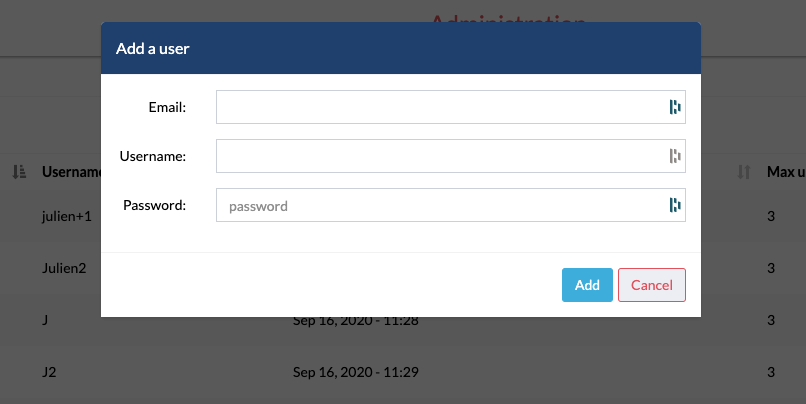
To add a user, select the Users tab and click on the + symbol next to the show combobox. You will be prompted to enter an email (can be fictive), a username (used under a mouse cursor and for messaging) and a password.
To remove a user, click on the − symbol in the Actions column, on the user's email row.
Add or remove a license
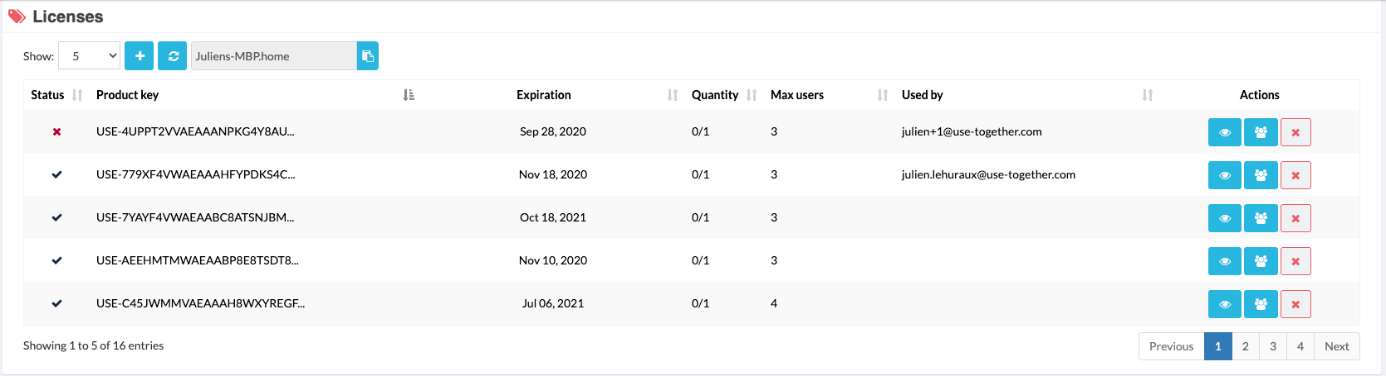
To add a license, select the Licenses tab and click on the + symbol
next to the show combobox. You will be prompted to select a file. Use the one you
have been provided with; its extension should be .lic. If your license is valid
for this machine, you should see a blue check mark under the Status column for
the corresponding license.
To remove a license, click on the − symbol in the Actions column, on the corresponding row.
Assign a license to a user
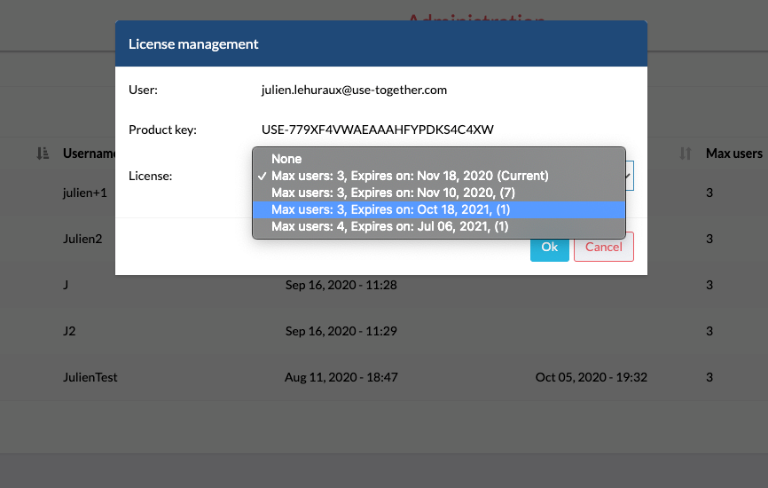
To assign a license to a user, select the Users tab, look for the target user and click on the Key tags icon in the Actions column. You will only be given the choice to assign a valid license or to unassign the current one.