Configure Drovio Server
You can configure Drovio Server right from the administration panel or from the configuration files. In both cases changes are picked up while the server runs: the configuration file is watched and a change takes effect within a few seconds, without interrupting ongoing sessions.
Three exceptions need a restart
- Plugins. The
plugin_managementsection is loaded at startup and is not reloaded dynamically, so adding, removing or reconfiguring a plugin only takes effect after a restart. Integrations such as the Slack integration fall in this category. - The HTTP listener.
tls,http_portandhttps_portare read once, when the server starts listening. Changing them later has no effect until a restart. On Linux,keystoreandkeystore_passwordare reapplied on the live listener when the server receivesSIGUSR2. See Enable HTTPS. - SSO. The SAML and OIDC clients are built when the server starts. Enabling or disabling SSO takes effect immediately, but changing the settings of a provider requires a restart. See SSO.
Everything else applies while the server runs. See Start and stop the service for your platform.
From the administration panel
If you have just installed and launched Drovio Server for the first time, you should have access to the administration panel, locally located at:
Replace localhost with your actual IP if you are accessing it from a distant
machine. If you cannot access the administration panel for any reason, please read
Troubleshooting.
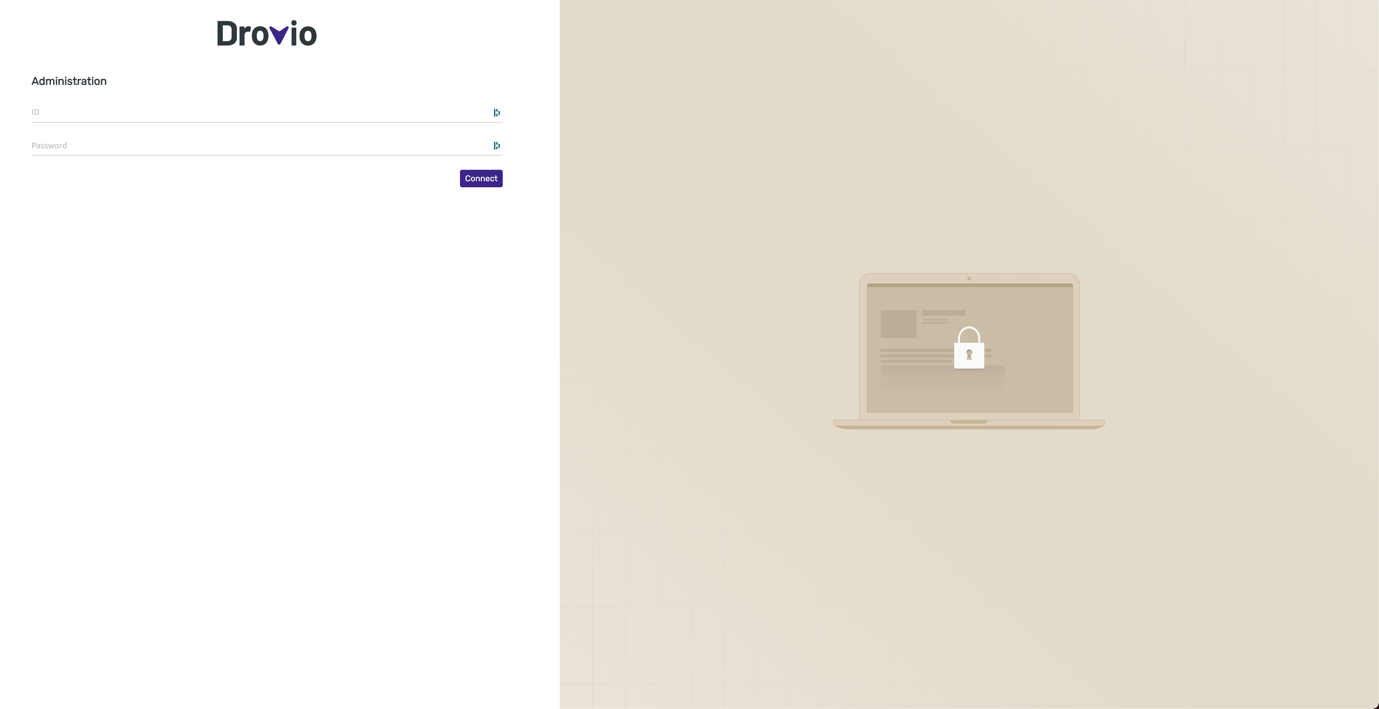
Default credentials (ID / password) are:
Change the default credentials
Open /etc/drovio-server/admin.properties.
Open C:\ProgramData\Drovio\Drovio Server\admin.properties.
Modify this file to match the following pattern:
When logged in, head to the Settings tab as shown below to reach the configuration panel.
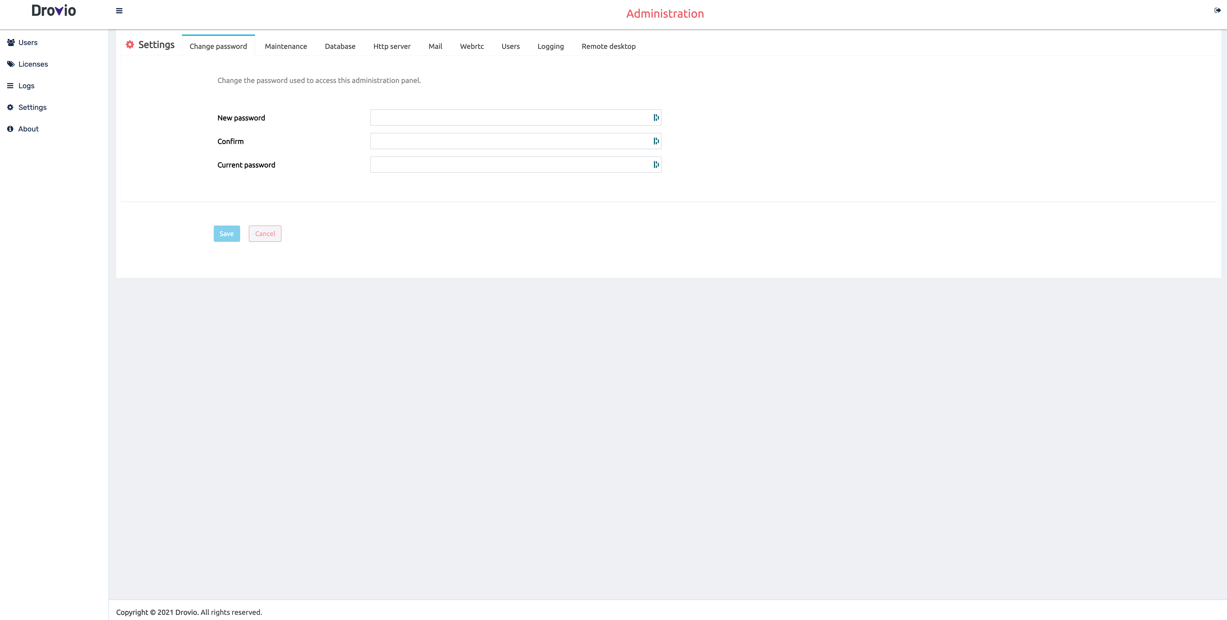
From here, you can change any setting used by Drovio Server. Refer to the Configuration reference for a detailed description of each field.
Two settings to change right now
The two main settings you should change right now are:
- Your admin password: Change password.
- The URL pointing to this server: HTTP server → URL, needed for notifications and user invitations.
From the configuration files
Drovio Server is configured through a JSON file:
Open /etc/drovio-server/settings.conf.
Open C:\ProgramData\Drovio\Drovio Server\settings.conf.
The configuration is in JSON format. Each field is described in the Configuration reference.
Your JWT secret
http.jwt_secret signs the sessions of users and the tokens on the API.
Since version 3.6.7, every installation, using the Windows and Linux
installers or the Docker images, will generate a secret at first start.
There is nothing to do on your end.
Installations deployed with version 3.6.6 or earlier had the value shipped
in the package. Replace it with a random string of your own, for instance
the output of openssl rand -base64 32. Doing so signs out the users
currently signed in.
Related topics
- Configuration reference: every setting, grouped by section.
- Enable HTTPS
- SSO: SAML & OIDC
- High Availability