Slack integration
A Slack integration can be added to your Drovio Server installation. It lets users start calls right from within Slack, using slash commands or from the call button (the latter requires Slack approval). It comes as a JAR file that you plug into Drovio Server and configure. You will need to create a Slack app on Slack.
Create a Slack app
Go to api.slack.com/apps, then click Create New App.
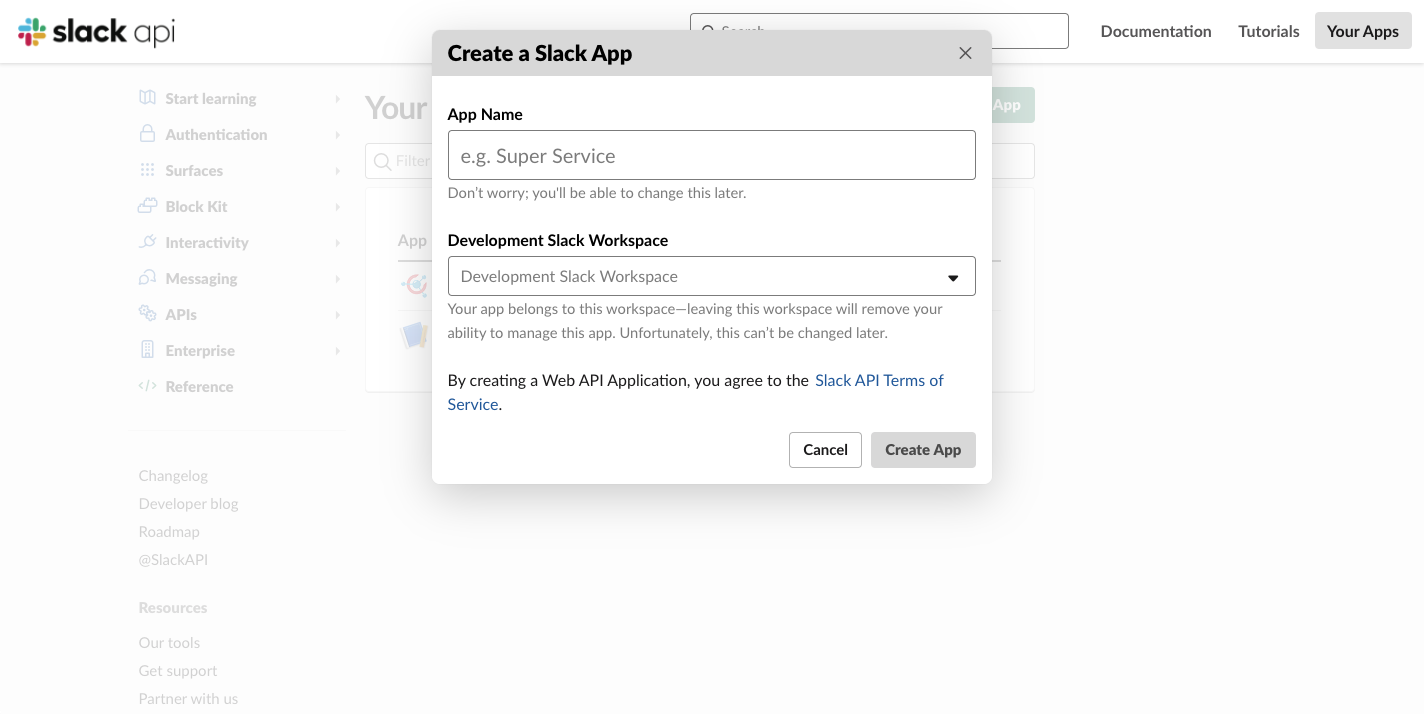
Enter any name (Drovio is fine) and select a development workspace where you'll
be able to test the integration.
Slash command
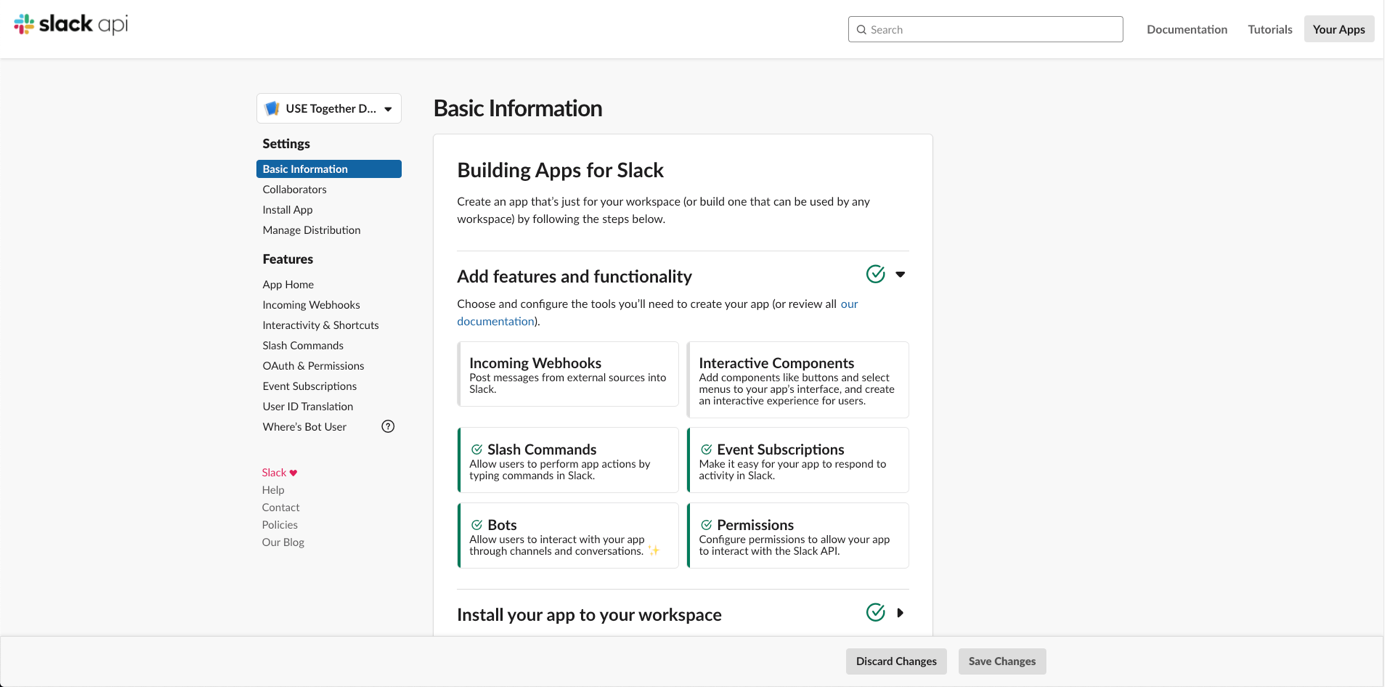
On the left navigation pane, click Slash Commands, then Create New Command:
- Command:
/drovio - Request URL:
https://your-drovio-server-url/slack/app/command - Short Description:
Pair remotely with Drovio (the app must be installed) - Usage Hint:
[help, invite, add] - Escape channels, users, and links sent to your app: checked
- Click Save.
OAuth & Permissions
On the left navigation pane, click OAuth & Permissions:
- Redirect URLs: add
https://your-drovio-server-url/slack/app/install. - Scopes: add the following OAuth scopes:
calls:writecommandsusers:readusers:read.email
Event Subscriptions
On the left navigation pane, click Event Subscriptions:
- Enable Events: On
-
Request URL:
https://your-drovio-server-url/slack/app/eventNote
Slack needs to verify the URL, so proceed with the Configure Drovio Server instructions first. You may also need to set
ignore_signaturetotruein Drovio Server's config for the URL to be verified. -
Subscribe to bot events: click Add Bot User Event:
app_uninstalledtokens_revoked
- Click Save Changes.
Socket Mode (optional)
To avoid exposing a public endpoint, you can use WebSocket mode to receive events from Slack. On the left navigation pane, click Socket Mode:
- Enable Socket Mode: On
- Create the app token and save it.
The Slack app configuration is finished. On the left pane, click Basic Information: you'll need the information displayed there to configure Drovio Server.
Configure Drovio Server
Before configuring the Slack plugin, run a few SQL statements using psql. Execute
all the scripts with the user drovio:
Now, copy drovio-slack.jar to any folder on the Drovio Server machine (e.g.
/opt/drovio-slack), then:
At the top of the config file, modify plugin_management:
"plugin_management": {
  "plugins": [
    {
      "classpath": "/opt/drovio-slack/drovio-slack.jar",
      "path": "com.drovio.server.slack",
      "ext": "java",
      "base_address": "drovio.server.slack"
    }
  ]
},
Then add a new entry at the bottom of the file, just before the last }:
,
"slack": {
  "client_id": "XXXXXXXXXXX.XXXXXXXXXXX",
  "client_secret": "XXXXXXXXXXXXXXXXXXXXXXX",
  "signing_secret": "XXXXXXXXXXXXXXXXXXXXXXXX",
  "app_redirect_uri": "https://your-drovio-server-url/slack/app/install",
  "launch_uri": "https://your-drovio-server-url/launch",
  "join_uri": "https://your-drovio-server-url/join/app",
  "enable_admin_emails": false,
  "ignore_signature": false,
  "websocket": false,
  "app_socket_token": "xapp-xxxxxxxxxxxxxxxxxxx"
}
client_id,client_secretandsigning_secretshould be set to the values displayed on the Slack app's configuration page, in Basic Information.- Adapt the URIs to your Drovio Server's.
enable_admin_emailssends an email to the address set insmtp.admin_emailwhen a workspace installs or uninstalls the app. Defaults tofalse.- If you configured the Slack app to use Socket Mode, set
websockettotrueand fill inapp_socket_tokenwith the token created when setting up Socket Mode. - You may need to set
ignore_signaturetotrueand start Drovio Server to be able to validate the Event Subscriptions URL on the Slack app's config (see above).
When everything is configured, restart the service, open Slack and go to your
development workspace. Enter /drovio help to get started.
Why a restart here
Most of the Drovio Server configuration is applied live, but plugins are loaded
at startup only. Any change to plugin_management, this plugin included,
takes effect on the next restart.
Slack calls integration
The /drovio command (without any parameter) requires approval from Slack, as it
deals with their call functionality. You will also be able to set Drovio as your
default calling app on Slack.
Contact us to learn more.