Slack integration
A Slack integration can be added to your Drovio Server installation. It lets users start calls right from within Slack, using slash commands or from the call button (the latter requires Slack approval). You will need to create a Slack app on Slack.
Create a Slack app
Go to api.slack.com/apps, then click Create New App.
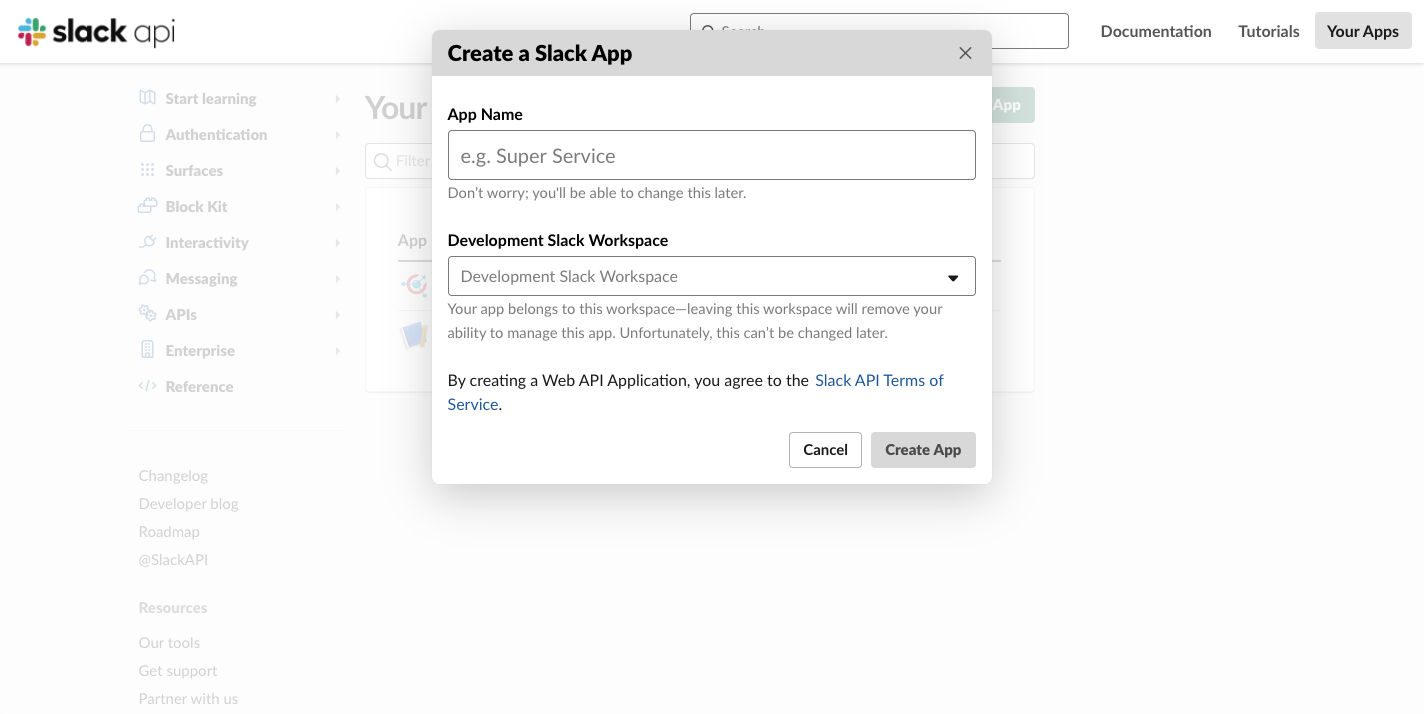
Enter any name (Drovio is fine) and select a development workspace where you'll
be able to test the integration.
The Slack integration page of the administration panel shows the three URLs to give Slack below, built from the public URL of your server.
Slash command
On the left navigation pane, click Slash Commands, then Create New Command:
- Command:
/drovio - Request URL:
https://your-drovio-server-url/slack/app/command - Short Description:
Pair remotely with Drovio (the app must be installed) - Usage Hint:
[help, invite, add] - Escape channels, users, and links sent to your app: checked
- Click Save.
OAuth & Permissions
On the left navigation pane, click OAuth & Permissions:
- Redirect URLs: add
https://your-drovio-server-url/slack/app/install. - Scopes: add the following OAuth scopes:
calls:writecommandsusers:readusers:read.email
Event Subscriptions
On the left navigation pane, click Event Subscriptions:
- Enable Events: On
-
Request URL:
https://your-drovio-server-url/slack/app/eventNote
Slack checks the URL as soon as it is entered. Configure the integration first: the URL answers once the integration is enabled with its signing secret.
-
Subscribe to bot events: click Add Bot User Event:
app_uninstalledtokens_revoked
- Click Save Changes.
Socket Mode (optional)
To avoid exposing a public endpoint, you can use WebSocket mode to receive events from Slack. On the left navigation pane, click Socket Mode:
- Enable Socket Mode: On
- Create the app-level token and save it.
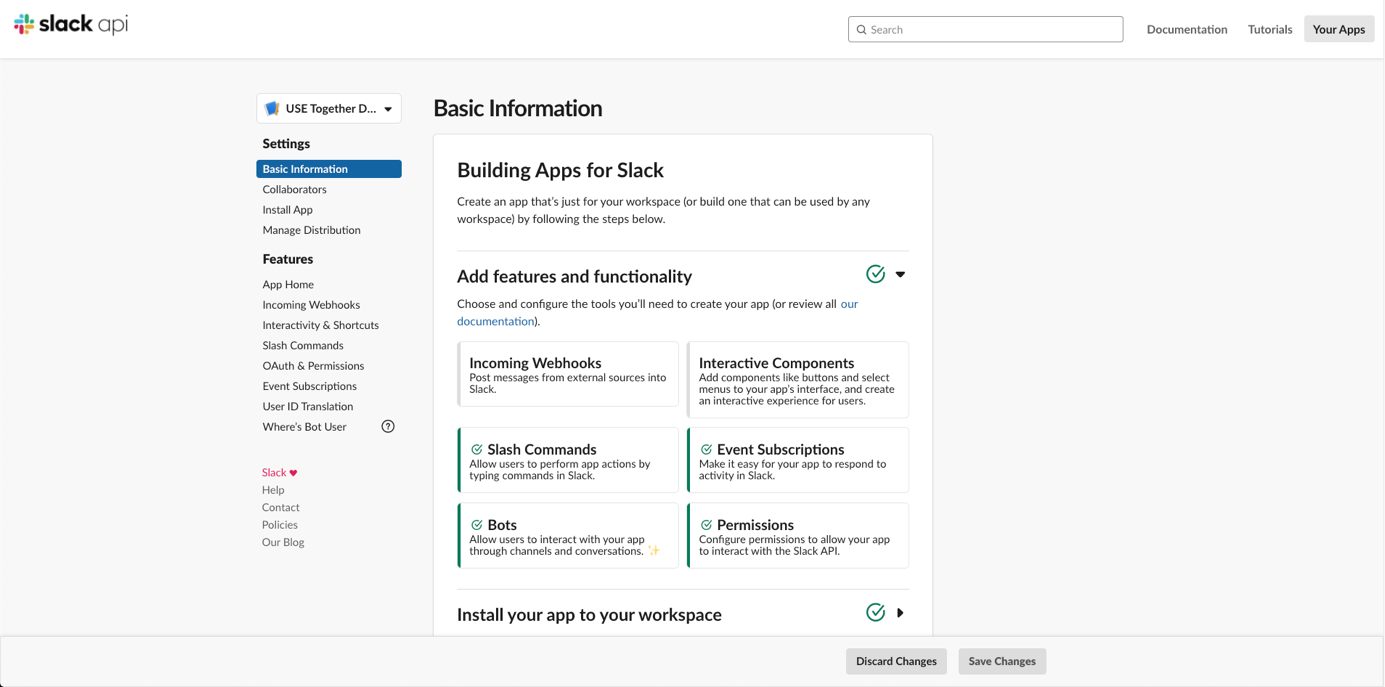
The Slack app configuration is finished. On the left pane, click Basic Information: you'll need the information displayed there to configure the integration.
Configure the integration
In the administration panel, open Integrations, then Configure on the Slack card.
| Field | Where it comes from |
|---|---|
| Status | Enabled or Disabled |
| Client ID | Basic Information of the Slack app |
| Client secret | Basic Information of the Slack app |
| Signing secret | Basic Information of the Slack app |
| Connection | Request URLs or Socket Mode if you turned it on in the Slack app |
| App-level token | The token created with Socket Mode if you turned it on in the Slack app, or empty |
| Call failures | Emails the administrators when a Slack call fails to start, to update or to end |
The page also shows the Redirect URL, the slash command URL and the events URL to enter in the Slack app. Each administrator can opt out of the call failure emails in Notifications, under A Slack call fails.
Saving takes effect on the next request, with no restart to perform.
Turning the status to Disabled stops the calls and the commands coming from Slack, while leaving the page available to configure the integration.
When everything is configured, open Slack and go to your development workspace.
Enter /drovio help to get started.
Configuration reference
These are the keys of the slack element of settings.conf, should you prefer to
edit it directly. In a cluster, the administration panel cannot save them: each
server reads its own settings file, which has to be edited on every one of them.
| Key | Default | Meaning |
|---|---|---|
enabled |
false |
Enable the integration |
client_id |
Client ID of the Slack app | |
client_secret |
Client secret of the Slack app | |
signing_secret |
Signing secret of the Slack app | |
enable_admin_emails |
false |
Email the administrators when a Slack call fails |
websocket |
false |
Receive the events and the commands through Socket Mode |
app_socket_token |
App-level token of Socket Mode if enabled, or empty | |
ignore_signature |
false |
Accept the requests Slack did not sign. For development only, never in production |
Slack calls integration
The /drovio command (without any parameter) requires approval from Slack, as it
deals with their call functionality. You will also be able to set Drovio as your
default calling app on Slack.